我的书签
我的书签
 添加书签
添加书签 移除书签
移除书签- Repeats
- Cursor motions
- Insert mode
- Insert mode commands
- Autocomplete
- Text editor
- Text object
- Move text
- Formatting text
- Copy and paste
- Revocation and restoration
- Find and replace
- Visual mode
- Comment command
- Open file
- Save and exit
- File operations
- Opened file operation
- Multi-window operation
- Tags
- Vim bookmarks
- Spell Check
- Code folding
- Document encryption/decryption
- Macro recording
- Other commands
- History commands
- Register
- Vim configuration file
- Vim plugins
- Vim mode
- External command
- Quickfix window
- Help information
- Internet resources
- Vim usage suggestions
- Books
- Vim keyboard diagram
- Reference
Vim command cheat sheet
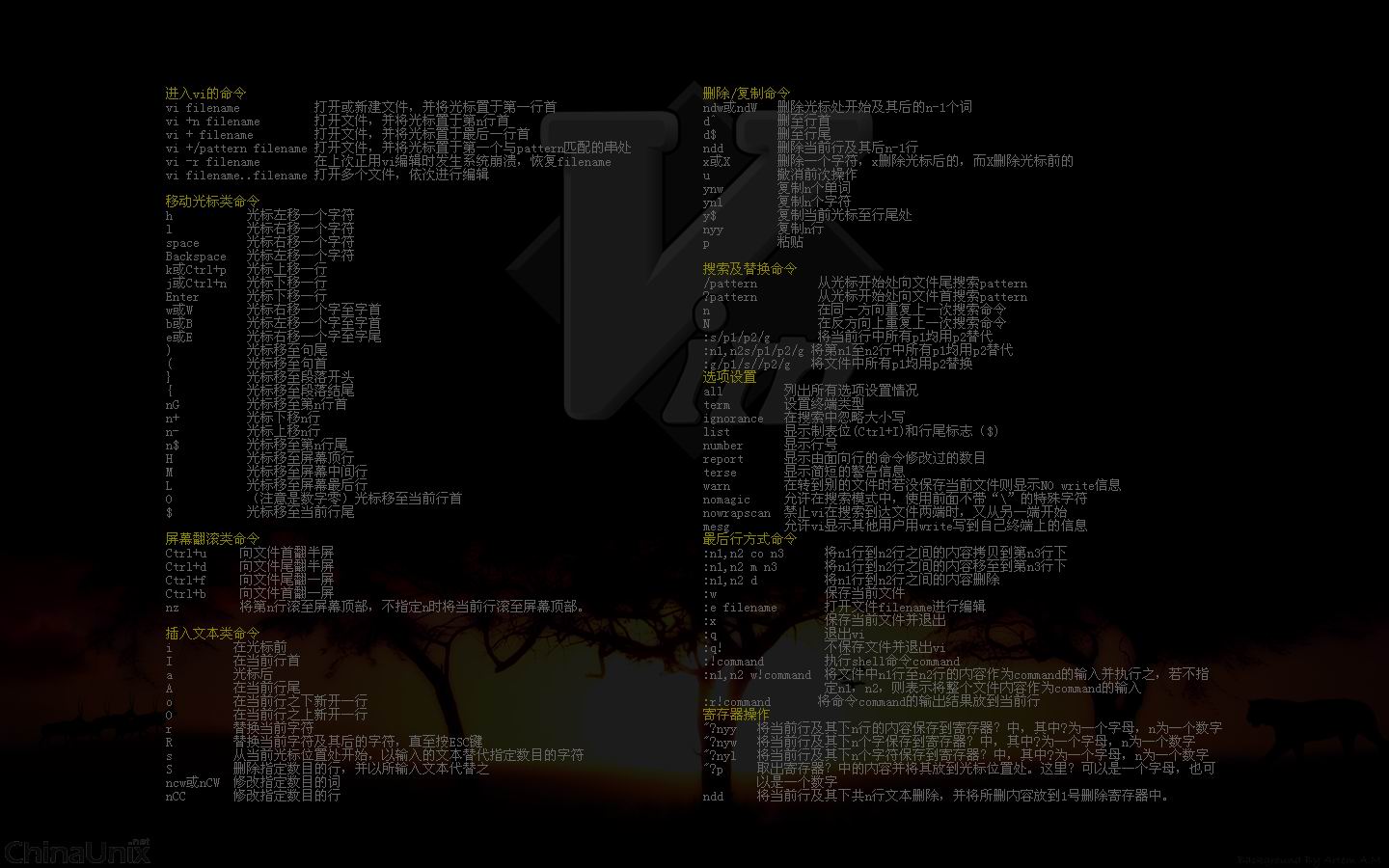
Introduction: Vim command lookup tables, annotated vimrc profiles, classic Vim keyboard diagrams, practical Vim books, Markdown format, directory-based search, systematic learning, quick familiarity with use! 📚
- Vim-cheatsheet - GitHub | Vim-cheatsheet - Gitee
- Vim official website | Vim GitHub | Vim Chinese Document
- Vim custom configuration file - vimrc
Repeats
. # Repeat (Dot) command, repeats the previous commandN{command} # Repeat a command N times, e.g. 10k, cursor moves up 10 lines
The use of macros and regular expressions can also be used to reduce the number of repetitive operations.
Cursor motions
Note: In normal mode, any of the actions can be repeated.
# -------------------- Unit level cursor movement --------------------h # The cursor moves to the left of the characterj # Move the cursor down one linek # Move the cursor up one linel # The cursor moves to the right of the character# -------------------- Word-level cursor movement --------------------w # [count] words forward. exclusive motionW # [count] WORDS forward. exclusive motione # Forward to the end of word [count] inclusiveE # Forward to the end of WORD [count] inclusiveb # [count] words backward. exclusive motionB # [count] WORDS backward. exclusive motion# -------------------- Block level cursor movement -------------------0 # To the first character of the line^ # To the first non-blank character of the line. exclusive motion. Any count is ignored$ # To the end of the linegg # Goto line [count], default first line, on the first non-blank character lineG # Goto line [count], default last line, on the first non-blank character line[N]G # Jump to the Nth row, for example 10G is to move to the tenth row:N # Jump to the Nth line, for example: 10<Enter> is to move to the tenth lineN% # Move to the N% position of the file, for example 10% is moved to the 10% position of the fileN| # Move to N columns of the current row<Enter> # Move to the first non-blank character in the next lineN<Enter> # Move the cursor down N linesge # Move backward to the end of the wordgE # Move backward to the end of a word separated by a whitespace) # Move forward one sentence (separated by periods)( # Move backward one sentence (period separated)} # Move forward one paragraph (separated by blank lines){ # Move backward one paragraph (separated by blank lines)+ # Move to the first non-blank character in the next line (same as the Enter key)- # Move to the first non-blank character in the previous lineH # Move to the upper part of the screen (H: High)M # Move to the middle of the screen (M: Middle)L # Move to the bottom of the screen (L: Low)gm # Move to the middle of the linegj # Move the cursor down one screen line (ignore automatic line wrapping)gk # Move the cursor up one screen line (ignore auto-wrap)<S+Up> # Hold down the <Shift> key and then press the <Up> arrow key to page up<S+Down> # Hold down the <Shift> key and then press the <Down> arrow key to page down<S+Left> # Hold down the <Shift> key and press the <Left> arrow key to move one word to the left<S+Right> # Hold down the <Shift> key and press the <Right> arrow key to move one word to the right:ju[mps] # Print the jump list:cle[arjumps] # Clear the jump list of the current window# ------------------ Screen-level cursor movement -------------------zz # Adjust the cursor line to the center of the screenzt # Adjust the cursor line to the upper part of the screenzb # Adjust the cursor line to the bottom of the screenCtrl+e # Scroll up one lineCtrl+y # Scroll down one lineCtrl+u # Move up 1/2 a screenCtrl+d # Move down 1/2 a screenCtrl+f # Move forward one full screenCtrl+b # Move back one full screen# ------------------ Programming assistance level cursor movement ---% # Match jump to the corresponding {} () []gd # Jump to the local definition (the definition of the word under the cursor)gD # Jump to the global definition (the definition of the word under the cursor)gf # Open the file whose name is the file name under the cursor[[ # Jump to the previous top-level function]] # Jump to the next top-level function[m # Jump to the previous member function]m # Jump to the next member function[{ # Jump to the previous unmatched {]} # Jump to the next unmatched }[( # Jump to the previous unmatched (]) # Jump to the next unmatched )[c # The last difference (when diffing)]c # The next difference (when diffing)[/ # Jump to the beginning of the C comment]/ # Jump to the end of the C comment`` # Go back to the last jumped position'' # Go back to the last jumped position`. # Back to the last edited position'. # Back to the last edited position
Insert mode
i # Enter insert mode at the cursorI # Enter insert mode at the beginning of the linea # Enter insert mode after the cursorA # Enter insert mode at the end of the lineo # Insert a new row in the next row and enter insert modeO # Insert a new row in the previous row and enter insert modes # Delete the character under the cursor and insert textS # Delete the current line and insert textgi # Go to the position of the last insert modegI # Insert text at the start of line (column 1)<Esc> # Exit insert modeCtrl+[ # Exit insert mode (equivalent to <Esc> key)Ctrl+C # Like Ctrl-[ and <Esc>, but does not check for abbreviation
Insert mode commands
Note: Enter insert mode by i, I, a, A, o, O, s, S command.
<Up> # Cursor up<Down> # Cursor down<Left> # Move the cursor to the left<Right> # Move the cursor to the right<S+Up> # Hold down the <Shift> key and then press the <Up> arrow key to page up<S+Down> # Hold down the <Shift> key and then press the <Down> arrow key to page down<S+Left> # Hold down the <Shift> key and press the <Left> arrow key to move one word to the left<S+Right> # Hold down the <Shift> key and press the <Right> arrow key to move one word to the right<PageUp> # Page up<PageDown> # Page down<Delete> # Delete the character at the cursor<Backspace> # Backspace key is to delete characters backward<Home> # Cursor jump to the beginning of the line<End> # Cursor jump to end of lineCtrl+d # Decrease indentCtrl+f # Decrease indentCtrl+t # Increase indentCtrl+h # Delete the previous character, equivalent to BackspaceCtrl+o # Temporarily exit insert mode, execute a single command and return to insert modeCtrl+u # Delete all characters from the current line to the beginning of the lineCtrl+w # Delete a word before the cursorCtrl+\ Ctrl+O # Temporarily exit insert mode (cursor hold), execute a single command and return to insert modeCtrl+R 0 # Insert the contents of the register (internal clipboard No. 0), the register name can be followed by Ctrl+RCtrl+R " # Insert anonymous register content, which is equivalent to p paste in insert modeCtrl+R = # Insert expression calculation result, equal sign followed by expressionCtrl+R : # Insert the last command line commandCtrl+R / # Insert the last search keywordCtrl+v {char} # Insert non-numeric literalsCtrl+v {code} # Insert the ASCII/Unicode character encoding represented by three digits, such as Ctrl+v 065Ctrl+v 065 # Insert a decimal ASCII character (two digits) 065 is the A characterCtrl+v x41 # Insert hexadecimal ASCII characters (three numbers) x41 is the A characterCtrl+v o101 # Insert octal ASCII characters (three numbers) o101 is the A characterCtrl+v u1234 # Insert hexadecimal Unicode characters (four digits)Ctrl+v U12345678 # Insert hexadecimal Unicode characters (eight digits)Ctrl+K {ch1} {ch2} # Insert digraph (see :h digraph), quickly enter Japanese or symbols, etc.
Autocomplete
Ctrl+n # Automatic text completion in insert mode, the most commonly used completionCtrl+P # Automatic text completion in insert modeCtrl+e # When there is a completion list, terminate this completion and continue typingCtrl+X # Enter completion mode.Smart completion commands all start with the key combination Ctrl+XCtrl+X Ctrl+L # Whole line completionCtrl+X Ctrl+N # In insert mode, complete according to keywords in the current fileCtrl+X Ctrl+K # Completion according to dictionaryCtrl+X Ctrl+T # Completion according to the synonym dictionaryCtrl+X Ctrl+F # Complete file name in insert modeCtrl+X Ctrl+I # Completion based on keywords in the header fileCtrl+X Ctrl+] # Complete according to tagsCtrl+X Ctrl+D # Complete macro definitionCtrl+X Ctrl+V # Completing Vim commandsCtrl+X Ctrl+U # User-defined completion methodCtrl+X Ctrl+S # Spelling suggestions, for example: an English wordCtrl+X Ctrl+O # Insert Omnifunc completion
Text editor
r # Replace the current characterR # Enter replacement mode until you press <Esc> to leave[N]s # Delete [count] characters and start insert[N]S # Delete [count] lines and start insert[N]x # Delete [count] characters under and after the cursor.Does the same as "dl"[N]X # Delete [count] characters before the cursor. Does the same as "dh"cc # Rewrite the current line (delete the current line and enter insert mode), same as Scw # Overwrite the current word at the beginning of the cursorciw # Rewrite the word under the cursorcaw # Rewrite the word under the cursor, and include leading and trailing spacesc0 # Rewrite to the beginning of the linec^ # Rewrite to the beginning of the line (the first non-zero character)c$ # Rewrite to the end of the linC # Rewrite to the end of the line (same as c$)ci" # Rewrite the content in double quotesci' # Rewrite the content in single quotescib # Rewrite the content in parenthesescab # Rewrite the content in the parentheses (including the parentheses themselves)ci) # Rewrite the content in parenthesesci] # Rewrite the content in the bracketsciB # Rewrite the content in the bracescaB # Rewrite the content in the braces (including the braces themselves)ci} # Rewrite the content in the bracescit # Rewrite the content in the XML tagcis # Rewrite the current sentencec2w # Write two words insteadct( # Rewrite before the parenthesesdd # Delete (cut) a lined0 # Delete (cut) to the beginning of the lined^ # Delete (cut) to the beginning of the line (the first non-zero character)d$ # Delete (cut) to the end of the lineD # Delete (cut) to the end of the line (same as d$)dw # Delete (cut) the current worddiw # Delete (cut) the word under the cursordaw # Delete (cut) the word under the cursor, and include leading and trailing spaces (if any)di" # Delete the content in double quotesdi' # Delete the content in single quotesdib # Delete the content in parenthesesdi) # Delete the content in parenthesesdab # Delete the content in the parentheses (including the parentheses themselves)di] # Delete the content in the square bracketsdiB # Delete the content in the bracesdi} # Delete the content in the bracesdaB # Delete the content inside the braces (including the braces themselves)dit # Delete the content in the tag in XMLdis # Delete the current sentenced2w # Delete the next two wordsdt( # Delete to the front of the parenthesisdgg # Delete to the head of the filedG # Delete to the end of the filed} # Delete the next paragraphd{ # Delete the previous paragraphNd # Delete N lines from the beginning of the current line:Nd # Delete line N:1,10d # Delete 1~10 lines~ # Replace caseg~iw # Replace the case of the current wordgUiw # Convert words to uppercaseguiw # Convert the current word to lowercaseguu # Convert the entire line to lowercasegUU # Convert the entire line to uppercase<< # Reduce indent>> # Increase indent== # Auto indentCtrl+A # Increase the numberCtrl+X # Reduce the number
Text object
Note: Only applicable to visual mode or after operator, for example: operation includes select v, delete d, copy y, modify c, etc.
aw # Operate the entire word, excluding the delimiter (aw: a word)aW # Manipulate entire words, including separators (aW: a Word)iw # Operate the entire word, excluding the separator (iw: inner word)iW # Operate the entire word, including the separator (iW: inner Word)is # Operate the entire sentence, excluding the separator (s: sentence)ib # Operation contains block, from [( to ]) (b: block)iB # Operation contains large blocks, from [{ to ]} (B: Block)ab # Operate a block, from [( to ])(b: block)aB # Operate a large block, from [{ to ]} (B: Block)ap # Operate a paragraph (p: paragraph)ip # Operation contains paragraphi) # Manipulate parentheses stringa) # Manipulate the string in the parentheses, including the parentheses themselvesi] # Operation bracket stringa] # Operate the bracket string, including the bracket itselfi} # Manipulate brace stringsa} # Manipulate brace strings, including the braces themselvesi' # Operation single quoted stringa' # Manipulate a single quoted string, including the single quote itselfi" # Manipulate double quoted stringsa" # Manipulate double quoted strings, including the double quotes themselvesa` # Manipulate a backtick stringi` # Operation contains backquote stringa> # Manipulate a <> blocki> # Operation contains <> blockat # Manipulate a tag block, for example from <aaa> to </aaa> (t: tag)it # The operation contains a tag block, such as from <aaa> to </aaa>2i) # Operate outside the two parentheses2a) # Operate the outer two levels of parentheses, including the parentheses themselvesNf) # Move to the Nth parenthesisNt) # Move to the Nth parenthesis
The text object can be simply summarized as:
ci'、ci"、ci(、ci[、ci{、ci< # Change the text content in these paired punctuation marks separatelydi'、di"、di(、dib、di[、di{、diB、di< # Delete the text content in these paired punctuation marks respectivelyyi'、yi"、yi(、yi[、yi{、yi< # Copy the text content of these paired punctuation marks separatelyvi'、vi"、vi(、vi[、vi{、vi< # Select the text content in these paired punctuation marks respectively
cit、dit、yit、vit,Operate the content between a pair of tags separately, and edit HTML and XML are easy to use! In addition, if you change the above i to a, you can operate the matching punctuation and the content in the matching punctuation at the same time.
Move text
:[range]m[ove]{address}
Parameter Description
- [range]: Indicates the range of rows to be moved.
- {address}: Indicates the target position of the movement, both of these parameters can be defaulted.
For example
:m+1 # Move down 1 line:m-2 # Move up 1 line:8,10m2 # Move the contents of lines 8~10 of the currently opened file to the bottom of line 2
Formatting text
[N]>> # Shift [count] lines one 'shiftwidth' rightwards[N]<< # Shift [range] lines one 'shiftwidth' left:ce[nter] # Set the text of the bank to be centered:le[ft] # Set the text of the bank to the left:ri[ght] # Set the text of the bank to the right:[range]ce[nter] [width] # Center lines in [range] between [width] columns:[range]le[ft] [indent] # Left-align lines in [range]. Sets the indent in the lines to [indent]:[range]ri[ght] [width] # Right-align lines in [range] at [width] columnsgq # Format the current linegqq # Format the current line. With a count format that many linesgq[N]q # Format [count] linesgqap # Format the current paragraphgq[N]ap # Format [count] paragraphsgq[N]j # Format the current line and the following [count] linesgqQ # Format before the paragraph to the end of the textJ # Join [count] lines, with a minimum of two linesgj # [count] display lines downward== # Filter [count] lines like with ={motion}
Copy and paste
Format of the copy command:
:[range]co[py]{address}
Parameter Description:
- [range]:Indicates the range of lines to be copied, where copy can be abbreviated as :co or :t
- {address}:Indicates the destination of the copy. Both of these parameters can be defaulted to indicate the current line where the Vim cursor is located.
For example: [:5copy.] means to copy line 5 of the file currently opened by Vim to the current line (indicated by .), that is, to create a copy of line 5 and place it below the current line.
The subscript lists some examples and uses of file copy using the abbreviation t of the copy command, which is used to understand the purpose of the copy command copy.
:3,5t. # Copy the content from lines 3 to 5 below the current line:t5 # Copy the current line below line 5:t. # Copy the current line below the current line (equivalent to yyp in normal mode):t$ # Copy the current line to the end of the text:'<,'>t0 # Copy the highlighted line to the beginning of the file
Copy and paste commands
p # After pasting to the cursorP # Paste before the cursorv # Enter visual modeV # Visual mode is marked by lineCtrl+V # Visual mode is marked by columny # Copy marked contenty$ # Copy the current position to the end of the lineyy # Yank (copy) a lineY # Copy the current line, same as yyyiw # Copy the current wordNyy # Copy the contents of N lines under the cursorddp # Cut the current line and paste (first delete the current line, copy it to the register, and paste)v0 # Select the current position to the beginning of the linev$ # Select the current position to the end of the lineviw # Select the current wordvib # Select things in parenthesesvi) # Select the content in parenthesesvi] # Select the content in the square bracketsviB # Select the content in the bracesvi} # Select the content in the bracesvis # Select the content in the sentencevab # Select the content in the parentheses (including the parentheses themselves)va) # Select the content in the parentheses (including the parentheses themselves)va] # Select the content in the brackets (including the brackets themselves)vaB # Select the content inside the braces (including the braces themselves)va} # Select the content inside the braces (including the braces themselves):set paste # Allow paste mode (to avoid automatic indentation affecting formatting when pasting):set nopaste # Prohibit paste mode"?yy # Copy the current line to the register?, The question mark represents the register name from 0-9"?d3j # Delete the contents of the three lines under the cursor and put them in the register?, The question mark represents the register name of 0-9"?p # Paste the contents of the register? After the cursor"?P # Paste the contents of the register? In front of the cursor:registers # Display the contents of all registers:[range]y # Copy range, for example: 20,30y is to copy 20 to 30 lines, and :10y is to copy the tenth line:[range]d # Delete range, for example: 20,30d is to delete 20 to 30 lines, and :10d is to delete the tenth line"_[command] # Use [command] to delete content without copying (not polluting registers)"*[command] # Use [command] to copy the content to the system clipboard (requires the Vim version to have clipboard support)
Revocation and restoration
[N]u # The undo command can be combined. For example, Nu, N is any integer, which means to undo N operations, the same below. (u: undo)[N]U # Undo the entire operationCtrl+r # Cancel the last u command (r: redo)Ctrl+R # Rewind the previous command
Find and replace
Find command in normal mode
/pattern # Search pattern from the cursor to the end of the file?pattern # Search pattern from the cursor to the head of the filen # Search down for matching contentN # Search forward% # Matching bracket movement, including (), {}, []. Combining the following two commands is quite powerful for programmers (premise: you need to move the cursor to the parentheses first)* # Search down the word under the cursor# # Search forward for the word under the cursorf{char} # Search backward for the first character of the current line as {char}, 2fv can find the second character of vF{char} # Search forward for the first character in the current line that is {char}t{char} # Search backward before the first character in the current line that is {char}T{char} # Search forward before the first character in the current line that is {char}; # Repeat the last character search command (f/t command), # Reverse the direction to find the last character search command (f/t command)tx # Search the current line before the specified stringfx # Search the current line to the specified string<Esc> # Abandon the search. For example, after starting the f command, I found that I wanted to use the F command, and the <Esc> exit key gave up the search
Note: The
Replace command in normal mode
:[range]s[ubstitute]/{pattern}/{string}/[flags]
Parameter Description:
- pattern:It is the string to be replaced, which can be represented by regexp.
- string:Replace pattern by string.
- [range]:There are the following values.
| [range] value | Description |
|---|---|
| null | Default cursor line |
| . | The current line where the cursor is |
| N | Line N |
| $ | the last line |
| ‘a | Mark the line where a (has been marked with ma before) |
| $-1 | The penultimate row, you can add or subtract a certain value to a certain row to obtain a certain row |
| 1,10 | Line 1~10 |
| 1,$ | First line to last line |
| 1,. | First line to current line |
| .,$ | Current line to last line |
| ‘a,’b | Mark the line where a is located to the line where the mark b is located (marked with ma, mb before) |
| % | All rows (equivalent to 1, $) |
| ?str? | Search upwards from the current position and find the first line of str (str can be regular) |
| /str/ | Search down from the current position to find the first line of str (str can be regular) |
Note that all the above representation methods for range can be used to set the relative offset through + and-operations.
- [flags] has the following values:
| [flags]value | Description |
|---|---|
| g | Replace all matches (global) in the specified range |
| c | Ask the user to confirm before replacing (confirm) |
| e | Ask the user to confirm before replacing (confirm) |
| i | not case sensitive |
| null | Only replace the first match in the specified range |
For example:
:s/p1/p2/g # Replace all p1 with p2 in the current line:%s/p1/p2/g # Replace all p1 with p2 in the current file:%s/p1/p2/gc # Replace all p1 with p2 in the current file, and ask you whether to replace it everywhere:10,20s/p1/p2/g # Replace all p1 in lines 10 to 20 with p2:%s/1\\2\/3/123/g # Replace "1\2/3" with "123" (special characters are marked with backslashes):%s/\r//g # Delete DOS line break ^M:%s///gn # Count the number of matches in a pattern:%s/^\s*$\n//g # Delete all blank lines in the Vim open file:g/^\s*$/d # Delete all blank lines in the Vim open file:%s/^M$//g # Delete the explicit ^M symbol in the Vim file (operating system line break problem)
Visual mode
Note: In Vim visual mode, you can select an editing area, and then perform operations such as inserting, deleting, replacing, and changing the case of the selected file content.
v # Switch to character-oriented visual modeV # Switch to line-oriented visual modeCtrl+V # Switch to block-oriented visual mode> # Increase indent< # Decrease indentd # Delete the highlighted textx # Delete the highlighted textc # Rewrite the text, that is, delete the highlighted text and enter the insert modes # Rewrite the text, that is, delete the highlighted text and enter the insert modey # Copy text~ # Convert caseo # Jump to the other end of the marked areaO # Jump to the other end of the marker blocku # Marked area converted to lower caseU # Convert marked area to uppercasegv # Reselect the last highlighted selectiong Ctrl+G # Show statistics of the selected areaggVG # Select full text<Esc> # Press <Esc> to exit visual mode
In addition: The Vim Normal command can execute commands in the normal mode in the command line mode. When the Normal command is combined with the Vim visualization mode, a lot of repetitive tasks can be completed with few operations.
Comment command
Multi-line comments
Ctrl+v # Enter the command line mode, press Ctrl+v to enter the visual mode, then press j or k to select multiple lines and mark the lines that need to be commentedI # Press the capital letter I, and then insert the comment character, such as #, //<Esc> # Press the <Esc> key to comment all
Uncomment multiple lines
Ctrl+v # Enter the command line mode, press Ctrl+v to enter the visual mode, press the letter l to select the number of columns horizontally, such as #, // (need to select 2 columns)j 或 k # Press the letter j, or k to select the comment symbold # Press the d key to uncomment all
Complex annotation
:Start line, end line s/^/ comment character /g # Add a comment at the beginning of the specified line:Start line, end line s/^ comment character //g # Uncomment at the beginning of the specified line:3,5 s/^/#/g # Comment lines 3-5:3,5 s/^#//g # Uncomment lines 3-5:1,$ s/^/#/g # Annotate the entire document:1,$ s/^#//g # Uncomment the entire document:%s/^/#/g # Annotate the entire document, this method is faster:%s/^#//g # Uncomment the entire document
Open file
vim . # Open the file manager, display the catalog file, edit by selecting the filevim filename # Open or create a new file, and place the cursor at the beginning of the first linevim + filename # Open the file and place the cursor at the beginning of the last linevim +n filename # Open the file and place the cursor at the beginning of line nvim -c cmd file # Before opening the file file, execute the specified Vim command cmdvim -b file # Open the file in binary mode, some special characters (such as line break ^M) can be displayed in this modevim -d file1 file2 # Use Vim to open file1 and file2 at the same time and diff the difference between the two filesvim -r filename # The system crashed the last time I was editing with Vim, restore the filevim -R file # Open the file as read-only, but you can still use :wq! to writevim -M file # The modification function is forcibly closed and cannot be used :wq! Writevim -o file1 file2 # When you want to open a Vim file in the terminal, split and display multiple files horizontallyvim -O file1 file2 # When you want to open a Vim file in the terminal, split and display multiple files verticallyvim -x file # Open the file encryptedvim +/target file # Open file and move the cursor to the first target string found
Save and exit
Note: Save and exit in normal mode.
:w # Write the file and save it, the time stamp of the file will be modified:w {filename} # Save file by name:w !sudo tee % # Save the file with super user privileges, you can also do this :w !sudo tee%> /dev/null:wa # Save all files:wall # Save all files:wqall # Save all files and exit:q # Close the window where the cursor is located and exit (q: quit):q! # Force quit (q: quit):qa! # Abandon all file operations and force exit:qall # Abandon all file operations and exit:x # Save the file and exit, the time stamp of the file will not be modifiedZZ # Save the changed file, and close the exit windowZQ # Close the window without saving the file
File operations
:e[dit] {filename} # Open the file and edit, open the file by the absolute or relative path of the file, Tab key to complete the path:e[dit] . # Open the file manager, browse the files in the current directory, select and edit:e[dit] # Reload current file:E[xplore] # Open the file manager, and display the directory where the active buffer is located:saveas {filename} # Save as specified file:o {filename} # Open another file in the current window (o: open):r {filename} # Read the file and insert the content after the cursor:r !dir # Capture and insert the output of the dir command after the cursor:on[ly] # Close other windows except the window where the cursor is located, same as Ctrl+W o:clo[se] # Close the file in the window where the cursor is, the same as Ctrl+W c:cd {path} # Switch Vim current path:cd - # Go back to the last current directory:pwd # Show Vim current path:n[ew] {filename} # Open a new window to edit the new file filename:new # Open a new window to edit a new file:ene[w] # Create a new file in the current window:vnew # Edit the new file in a new window divided into left and right:tabnew # Edit the new file in a new tab:fin[d] {file} # Find the file {file} in path and edit it:f[ile] # Display the current file name and cursor position:f[ile] {name} # Set the current file name to name:files # Show all alternate file names
Opened file operation
:ls # Investigation cache list:bn # Switch to the next cache:bp # Switch to the previous cache:bd # Delete cache:b 1 # Switch to cache 1:b abc # Switch to the cache whose file name starts with abc:badd {filename} # Add files to the cache list:set hidden # Set hidden mode (unsaved cache can be switched away or closed):set nohidden # Turn off the hidden mode (unsaved cache cannot be switched away or closed)n Ctrl+^ # To switch the cache, enter the numeric cache number first, then press Ctrl+6
Multi-window operation
The split-screen window is based on the Ctrl+W shortcut key, Ctrl is the control function key, W stands for Windom, and Ctrl+W stands for control window.
:sp {filename} # Split the window horizontally and open the file in a new window filename:vs {filename} # Split the window vertically and open the file in a new window filename:split # Copy the current window to a horizontal window, the content is synchronized, the cursor can be different:vsplit # Copy the current window to another vertical window, the content is synchronized, the cursor can be differentCtrl+W # Switch to the next windowCtrl+W s # Horizontal split windowCtrl+W v # Split window longitudinallyCtrl+W w # Cycle to the next windowCtrl+W W # Cycle to the previous windowCtrl+W p # Skip to the last visited windowCtrl+W r # reverse windowCtrl+W c # Close the current window, but cannot close the last windowCtrl+W q # Exit the current window, if it is the last window, close viCtrl+W o # Keep only the active window, close other (o: other) windows, same as :on[ly]Ctrl+W h # Jump to the left windowCtrl+W j # Jump to the window belowCtrl+W k # Jump to the upper windowCtrl+W l # Jump to the right windowCtrl+W + # Increase the row height of the current window, you can add a number in frontCtrl+W - # Decrease the row height of the current window, you can add a number in frontCtrl+W < # Reduce the column width of the current window, you can add a number in frontCtrl+W > # Increase the column width of the current window, you can add a number in frontCtrl+W = # Make all windows the same width and heightCtrl+W H # Move the current window to the far leftCtrl+W J # Move the current window to the bottomCtrl+W K # Move the current window to the topCtrl+W L # Move the current window to the far rightCtrl+W x # Exchange windowCtrl+W f # Open the file named under the cursor in a new windowCtrl+W gf # Open the file named under the cursor in a new tabCtrl+W T # Move the current window to a new tabCtrl+W P # Jump to the preview windowCtrl+W z # Close preview windowCtrl+W _ # Maximize the current window verticallyCtrl+W | # Maximize the current window horizontally
Tags
:tabs # Show all tabs:tabe {filename} # Open the file filename in a new tab:tabn[ext] # Next tab:tabp[revious] # Previous tab:tabc[lose] # Close current tab:tabo[nly] # Close other tabs:tabn N # Switch to the Nth tab page, for example: tabn 3 Switch to the third tab page:tabm n # Label move:tabfir[st] # Switch to the first tab:tabl[ast] # Switch to the last tab:tab help # Open help in tab:tab drop {file} # If the file has been opened by other tabs and windows, skip over, otherwise open a new tab:tab split # Open the file in the current window in a new tab:tab ball # Open all files in the cache with tabs:set showtabline=? # Set to 0 to not display the tab page label, 1 will be displayed on demand, 2 will be permanently displayedNgt # Switch to the Nth tab page, for example, 2gt will switch to the second tab pagegt # Next tabgT # Previous tab
Vim bookmarks
:marks # Show all bookmarksma # Save the current position to bookmark a, the lowercase letter of the book signature is in the file, and the uppercase global'a # Jump to the line of bookmark a`a # Jump to the location of bookmark a`. # Jump to the last edited line'A # Jump to full text bookmark A[' # Jump to the previous bookmark]' # Jump to the next bookmark'< # Jump to the beginning of the last visual mode selection area'> # Jump to the end of the last visual mode selection area
Spell Check
:set spell # Turn on spell check:set nospell # Turn off spell check]s # The next misspelled word[s # The last misspelled wordzg # Add words to the spelling vocabularyzug # Undo the last word addedz= # Spelling suggestion
Code folding
zf{motion} # Operator, manually define a fold (f:fold):{range}fold # Define the lines included in the range {range} as a foldzf # Create code foldingzF # Specify the number of rows to create a foldza # Toggle foldzA # Switch folding recursivelyzc # Close a fold under the cursor (c: close)zC # Close all folds under the cursor (C: Close)zd # Delete the fold under the cursorzD # Recursively delete all foldszE # Delete all foldszi # Toggle foldzm # All codes are folded one levelzM # Fold all code, set foldlevel=0, set foldenablezr # All codes open one layerzR # Open all code and set foldlevel to the maximumzn # Fold none, reset foldenable and open all codeszN # Fold Normal, reset foldenable and restore all foldszo # Open a layer of codezO # Turn on all code folding under the cursor
Document encryption/decryption
The document is encrypted. When you open the file, you will be prompted to enter the password twice in the lower left corner of the screen before you can operate. After saving the file and exiting, you must enter the normal password to open the file correctly, otherwise garbled characters will be displayed.
vim -x {filename} # Enter the encryption password and confirm the password again. Note: Save the content without modifying it, otherwise the password setting will not take effect:X # Enter the encryption password in command mode and confirm the password again. Note: Save the content without modifying it, otherwise the password setting will not take effect:set key=password # Enter the encryption password in command mode and confirm the password again. Note: Save the content without modifying it, otherwise the password setting will not take effect
Document decryption, set decryption by command mode.
:X # In command mode, directly press Enter to indicate that the password is empty. Note: Save the content without modifying it, otherwise the decryption setting will not take effect:set key= # Set the key password to be empty in command mode. Note: Save the content without modifying it, otherwise the password setting will not take effect
Macro recording
Macro is the function of recording and playback. It is an integration of a series of Vim command operations. Using macros can achieve a lot of repetitive work.
qa # Start recording the macro named aq # End recording macro@a # Play the macro named a@@ # Play the previous macro@: # Repeat the last ex command (colon command)
Macro example:You need to type a Tab key at the beginning of the following multi-line text to indent the beginning of the line.
set nuset tabstop=4set shiftwidth=4set softtabstop=4set autoindentset wrapsyntax on
Record macro
- Move the cursor to the first line first.
- In Normal mode, press the q key and a letter to start recording. For example, press qa to register the macro as a.
- Press I to insert at the beginning of the line, and press Tab in edit mode. Press
to return to Normal mode. - Press the j key to move the cursor to the next line.
- Press the q key to finish recording.
Use macro
- Using the macro a recorded above, press @a to play the macro named a.
- Move the cursor to the second line in Normal mode, press @a, and use macro a again.
- Press N@a for multiple operations, where N is a positive integer, which means that the macro is executed N times. For example, move the cursor to line 3, operate macro a on the remaining 5 lines, and press 5@a.
The above recording macro, using macro two common operations, complete the beginning of multiple lines of text, type a Tab key to indent the beginning of the line!
Other commands
ga # Display the ASCII code or Unicode code of the character under the cursorg8 # Display the UTF-8 encoding byte order of the character under the cursorgi # Go back to the place where you entered the insert last time, and switch to insert modeK # Query the help of the word under the cursorCtrl+G # Display the name of the file being edited, as well as size and location informationg Ctrl+G # Display file size, number of characters, number of words and number of lines, also available in visual modeCtrl+PgUp # On the last tab page, GVim OK, some terminal software needs to set the corresponding keyboard codeCtrl+PgDown # The next tab page, GVim OK, some terminal software needs to set the corresponding keyboard codeCtrl+R Ctrl+W # Insert the word under the cursor in command modeCtrl+Insert # Copy to the system clipboard (GVIM)Shift+Insert # Paste the contents of the system clipboard (GVIM)Ctrl+X Ctrl+E # Scroll up in insert modeCtrl+X Ctrl+Y # Scroll down in insert mode:map # To view the map shortcuts of the current Vim configuration:inoremap # To view the inoremap shortcuts of the current Vim configuration:nnoremap # To view the nnoremap shortcuts of the current Vim configuration:set ff=unix # Set change behavior unix:set ff=dos # Set change behavior dos:set ff? # View line break settings:set nohl # Clear search highlight:set termcap # See what will be received from the terminal and what commands will be sent to the terminal:set guicursor= # Solve the problem of some strange characters in NeoVim in SecureCRT/PenguiNet:set t_RS= t_SH= # Solve the strange characters in the Vim8.0 terminal function in SecureCRT/PenguiNet:set fo+=a # Enable real-time automatic formatting of text segments:earlier 15m # Go back to the contents of the file 15 minutes ago:.!date # Insert time in current window:%!xxd # Start binary editing:%!xxd -r # Save binary edit:r !curl -sL {URL} # After reading the URL content and adding it to the cursor:g/^\s*$/d # Delete blank lines:g/green/d # Delete all lines containing green:v/green/d # Delete all lines that do not contain green:g/gladiolli/# # Search words and print the results, and add the line number before the results:g/ab.*cd.*efg/# # Search for lines containing ab, cd and efg, print the result and line number:v/./,/./-j # Compress blank lines:Man bash # View man in Vim, first call :runtime! ftplugin/man.vim to activate/fred\|joe # Search for fred or joe/\<\d\d\d\d\> # Search exactly four numbers/^\n\{3} # Search for three consecutive blank lines
History commands
History command format:
:his[tory] [{name}] [{first}][, [{last}]]
Parameter Description:
- {name}:Specifies the history type.
- {first}:Specifies the starting position of the command history, defaults to the first record.
- {last}:Specifies where the command history ends, defaults to the last record.
In command line mode.
:his[tory] # View the history of all commands entered in the command line mode:his[tory] all # Show all types of history:history c 1,5 # List the first to fifth command line history:history search or / or ? # View search history:call histdel("") # delete history:help :history # See help for the :history command
In normal mode.
q/ # View search history used q/ enteredq? # View usage q? Entered search historyq: # View command line history
Register
View register value.
:reg # View all register values:reg {register} # View the specified register value
Recall register value.
"{register} # Recall register value in normal mode:Ctrl+r "registerName # After entering Ctrl+r in command mode, Vim will automatically type "register reference symbolCtrl+r registerName # In insert mode (no need to enter register reference symbol ")
Vim register classification
| Register name | Citation method | Description |
|---|---|---|
| Unnamed register | “” | The default register, all copy and modify operations (x, s, d, c, y) will copy the data to the unnamed register |
| Named register | “a - “z or “A - “Z | {register} can only be one of 26 English letters, from a-z, A-Z register contents will be merged into the corresponding lowercase letters |
| Copy special register | “0(Number 0) | Only when the copy operation (y) is used, the data will be copied to the unnamed register and the copy special register at the same time |
| Numbered register | “1 - “9 | All data without ranges (‘(‘,’)’,’{‘,’}’) and operations involving more than 1 line of delete and modify operations (x, s, d, c) will be copied to the stepwise temporary cache register , And when new data is added, it progresses step by step. The data of 1 is copied to 2, 2 to 3, and the contents of the last 9 registers will be deleted |
| Black hole register | “_ | Almost all the data involved in the operation will be copied to the register. If you want the data to be operated not to pass through the register, you can specify a black hole register. The data will disappear when the register arrives, and it cannot be displayed and does not exist. |
| System clipboard | “+ or “* | When interacting with the GUI external to Vim, you need to use a special system clipboard |
| Expression register | “= | The most special one of all registers is used to calculate expressions. After entering the register application, it will prompt “=” in the command line, enter the expression as needed, and the result will be displayed at the cursor |
| Other registers | - | - |
Vim configuration file
Note: Vim configuration files are available in global and user versions, and user configuration files take precedence over global system configuration files.
:ve[rsion] # Check the Vim version, and also check the priority order and location of Vim loading configuration files:echo $MYVIMRC # Use this command in Vim command mode to output the location of the Vim configuration file:edit $MYVIMRC # Use this command to open the Vim configuration file in Vim command mode:so[urce] $MYVIMRC # After the Vim configuration file is changed, use this command to load the new configuration options. If the vimrc file happens to be the currently active buffer, this command can be simplified to: so %.:echo $VIM # Output the location of the global vimrc configuration file, stored in the Vim installation directory:echo $HOME # Output the location of the user vimrc configuration file, stored in the user's home directory
Vim configuration instructions, please refer to vimrc configuration file for details. Note: Vim configuration can be set individually in command mode and only takes effect in the current window!
syntax # List the defined grammar itemssyntax clear # Clear defined grammar rulessyntax on # Allow syntax highlightingsyntax off # Prohibit syntax highlightingset history=200 # Record 200 historical commandsset bs=? # Set Backspace key mode, modern editor is :set bs=eol,start,indentset sw=4 # Set the indent width to 4set ts=4 # Set the tab width to 4set noet # Set not to expand Tab to spaceset et # Set expand Tab to spaceset winaltkeys=no # Set the normal capture of the Alt key under GVimset nowrap # Turn off word wrapset ttimeout # Allow terminal key detection to time out (the function key under the terminal is a series of scan codes starting with Esc)set ttm=100 # Set the terminal key detection timeout to 100 millisecondsset term=? # Set the terminal type, such as the common xtermset ignorecase # Set whether the search ignores caseset smartcase # Smart case, ignore case by default, unless the search content contains uppercase lettersset list # Set to display tabs and line breaksset nu # Set the display line number, you can use :set nonu to prohibit the display line numberset number # Set the display line number, you can use :set nonumber to prohibit the display line numberset relativenumber # Set display relative line number (distance between other lines and current line)set paste # Enter paste mode (disable indentation when pasting and other things that affect formatting)set nopaste # End paste modeset spell # Allow spell checkingset hlsearch # Set highlight searchset ruler # Always show cursor positionset nocompatible # The setting is not compatible with the original vi mode (must be set at the very beginning)set incsearch # Dynamic incremental display of search results during search inputset insertmode # Vim is always in insert mode, use Ctrl+o to execute commands temporarilyset all # List all option settings
Vim plugins
vim-commentary:Vim batch comment tool, you can comment multiple lines and remove multiple lines of comments.
gcc # Comment the current linegc{motion} # Annotate the area marked by {motion}, such as gcap annotate the entire paragraphgci{ # Comment the content in bracesgc # Press gc to annotate the selected area under Visual Mode:7,17Commentary # Comment lines 7 to 17
NERDTree:This plugin is used to list the directory tree of the current path.
? # Quick help documento # Open a directory or open a file, create a buffer, can also be used to open bookmarksgo # Open a file, but the cursor remains in NERDTree, creating a buffert # Open a file and create a Tab, which is also effective for bookmarksT # Open a file, but the cursor still stays in NERDTree. Tab is created, which is also effective for bookmarksi # Split the window to create the file horizontally, creating a buffergi # Split the window where the file was created horizontally, but the cursor remains in NERDTrees # Split the window that creates the file vertically, creating a buffergs # Similar to gi and gox # Collapse the currently open directoryX # Collapse all open directoriese # Open the selected directory by file managementD # Delete bookmarkP # Uppercase, jump to the current root pathp # Lowercase, jump to the previous path where the cursor is locatedK # Jump to the first subpathJ # Jump to the last subpathC # Set the root path to the directory where the cursor isu # Set the parent directory as the root pathU # Set the parent directory to follow the path, but keep the original directory openr # Refresh the directory where the cursor isR # Refresh the current root pathI # Show or not show hidden filesf # Turn file filters on and offq # Close NERDTreeA # Show NERDTree in full screen, or close full screenCtrl+j Ctrl+k # Move between directories and files at the same level, ignoring subdirectories and subfiles
asyncrun.vim:The plug-in uses the asynchronous mechanism of Vim 8 / NeoVim, allowing you to run Shell commands in the background and display the results in Vim’s Quickfix window in real time.
:AsyncRun ls # Run the command ls asynchronously and output the result to quickfix. Use :copen to view:AsyncRun -raw ls # Run the command asynchronously, the result of ls does not match errorformat
Vim mode
Normal mode # Press <Esc> or Ctrl+[ to enter, the file name is displayed in the lower left corner or emptyInsert mode # Press i to enter, the lower left corner shows --INSERT--Visual mode # Press v to enter, the lower left corner shows --VISUAL--Replacement mode # Press r or R to start, the lower left corner shows --REPLACE--Command line mode # Press : or / or ? To start
External command
:!{command} # Execute a one-time Shell command, the following command: :!pwd, change the directory in the current Vim mode:!! # Re-execute the most recently run command:sh[ell] # Start an interactive Shell to execute multiple commands, the exit command exits and returns to Vim:!ls # Run the external command ls and wait for the return:r !ls # Capture the output of the external command ls and insert it after the cursor:w !sudo tee % # sudo saves the current file in the future, it can also be like this :w !sudo tee % > /dev/null:call system('ls') # Call the ls command, but do not display the returned content:!start notepad # Start Notepad under Windows, you can add silent at the top:sil !start cmd # Open cmd in the current directory under Windows:%!prog # Run a text filter program, such as sorting JSON format:%!python -m json.tool
Quickfix window
:copen # Open the quickfix window (view compilation, grep and other information):copen 10 # Open the quickfix window and set the height to 10:cclose # Close the quickfix window:cfirst # Jump to the first error message in quickfix:clast # Jump to the last error message in quickfix:cc [nr] # View error [nr]:cnext # Skip to the next error message in quickfix:cprev # Jump to the previous error message in quickfix
Help information
:h[elp] {command} # To display the help of related commands, you can also enter :help instead of the command. To exit the help, you need to enter :q:h tutor # Getting started document:h quickref # Quick help:h index # Query all keyboard command definitions in Vim:h summary # Help you better use the built-in help system:h Ctrl+H # Query what Ctrl+H does in normal mode:h i_Ctrl+H # Query what does Ctrl+H do in insert mode:h i_<Up> # Query what is on the arrow keys in insert mode:h pattern.txt # Regular expression help:h eval # Scripting help:h function-list # View the list of functions in VimScript:h windows.txt # Window help:h tabpage.txt # Help on using tabs:h +timers # Show help for the +timers feature:h :! # See how to run external commands:h tips # View the documentation of common techniques built into Vim:h set-termcap # See how to set the key scan code:viu[sage] # Displays help for common commands. The purpose is to simulate the corresponding Nvi commands:exu[sage] # Displays help for the Ex command. The purpose is to simulate the corresponding Nvi commands:ve[rsion] # View the Vim version, and also view the priority and location of the Vim load configuration file
Internet resources
- Latest Versions of Vim:https://github.com/vim/vim
- Windows version:https://github.com/vim/vim-win32-installer/releases
- Plug-in browsing:http://vimawesome.com
- Set the Alt key correctly:http://www.skywind.me/blog/archives/2021
- Video tutorial:http://vimcasts.org/
- Chinese help:http://vimcdoc.sourceforge.net/doc/help.html
- Chinese version entry to proficiency:https://github.com/wsdjeg/vim-galore-zh_cn
- Getting started with a five-minute script:http://www.skywind.me/blog/archives/2193
- Script mastery:http://learnvimscriptthehardway.stevelosh.com/
- 16 years of experience:http://zzapper.co.uk/vimtips.html
- coloring scheme:http://vimcolors.com/
Vim usage suggestions
- Never use Ctrl+C instead of
. It has a completely different meaning and is easy to mistakenly interrupt the running background script. - Many people use Ctrl+[ instead of
, the little finger of the left hand is Ctrl, and the little finger of the right hand [ is very convenient after being proficient. - If you see strange characters when using Vim 8 embedded terminal in some terminals, use :set t_RS= t_SH= to solve it.
- If you see strange characters when using NeoVim in some terminals, use :set guicursor= to solve it.
- Use ciw, ci[, ci”, ci( and diw, di[, di”, di( commands to quickly rewrite/delete text.
- When moving the cursor left or right in the line, use w b e or W B E instead of h l or the arrow keys, which will be much faster.
- Shift is equivalent to moving the accelerator key, w b e moves the cursor very slowly, but W B E moves very fast.
- You should be good at summarizing new skills, such as moving to a non-blank character at the beginning of a line, using the 0w command is easier to enter than the ^ command.
- Use the dip command on a blank line to delete all adjacent blank lines, and viw can choose continuous blanking.
- It is much more convenient to use >8j >}
ap =i} == when indenting. - In insert mode, when you find a word is wrong, you should use Ctrl+W. This is faster than
. - The y d c command can be a good combination of f t and /X such as dt) and y/End
. - The c d x command will automatically fill the register “1 to “9, and the y command will automatically fill the “0 register.”
- When using the v command to select text, you can use 0 to make a U-turn selection, which is sometimes useful.
- When writing an article, you can write a code block, and then select it and execute it:! The python code block will be replaced with the result.
- After searching, you often use :nohl to eliminate the highlight. It is used very frequently and you can map it to
. - When searching, you can use Ctrl+R Ctrl+W to insert the word under the cursor, and the command mode can also be used in this way.
- When mapping keys, noremap should be used by default, and map should only be used when specifically needed.
- After copying the text with y, press Ctrl+R in the command mode and then press the double quotation mark 0 to insert the previously copied content.
- GVim under Windows can set set rop=type:directx,renmode:5 to enhance the display.
- When you feel that doing something is inefficient, you should stop and think about the correct and efficient way to do it.
Books
Practical Vim(English version) | Practical Vim(Chinese Version)
Vim keyboard diagram
Reference
- https://github.com/skywind3000/awesome-cheatsheets/blob/master/editors/vim.txt
- http://blog.g-design.net/post/4789778607/vim-cheat-sheet
- http://www.fprintf.net/vimCheatSheet.html
- http://www.ouyaoxiazai.com/article/24/654.html
- http://bbs.it-home.org/thread-80794-1-1.html
- http://www.lpfrx.com/wp-content/uploads/2008/09/vi.jpg
- https://github.com/glts/vim-cottidie/blob/master/autoload/cottidie/tips
- https://github.com/hobbestigrou/vimtips-fortune/blob/master/fortunes/vimtips
- http://michael.peopleofhonoronly.com/vim/