我的书签
 添加书签
 移除书签
Installing and Registering
Installing and Uninstalling PowerArchiver
Desktop Environments
Installation:
To install PowerArchiver, simply run the setup file downloaded from the Internet and follow the instructions.
Uninstalling PowerArchiver
To remove PowerArchiver from your system, open the Control Panel, double click on Add/Remove Programs, and double click on the PowerArchiver entry.
Uninstalling PowerArchiver performs the following steps:
-
Verifies that it is safe to uninstall PowerArchiver
-
Deletes the files in the PowerArchiver folder
-
Removes the PowerArchiver icons and Start menu entries
-
Removes the PowerArchiver entries from the registry
Network Environments
Special instructions and MSI installations are available ONLY to our registered business users.
Installation
Please contact us directly via support website at http://www.powerarchiver.com/support/ for a special network installation setup that has an option for silent install and more instructions on installing PowerArchiver on multiple computers via network (used if you have 10+ Business license of PowerArchiver).
PowerArchiver System Requirements
-
Microsoft Windows® XP, XP 64-bit, Vista, Windows 7, Windows 8, Windows 10, Windows Server 2008 or higher, both 32bit and 64bit.
-
= Intel Core 2 or faster processor (recommended: Intel i3)
-
= 512 MB or more RAM (recommended: 2 GB)
-
A hard disk with at least 150 MB free space (recommended: 250 MB)
-
A Microsoft or 100% compatible mouse (recommended)
-
No external programs are required to add or extract files to or from an archive.
Register PowerArchiver
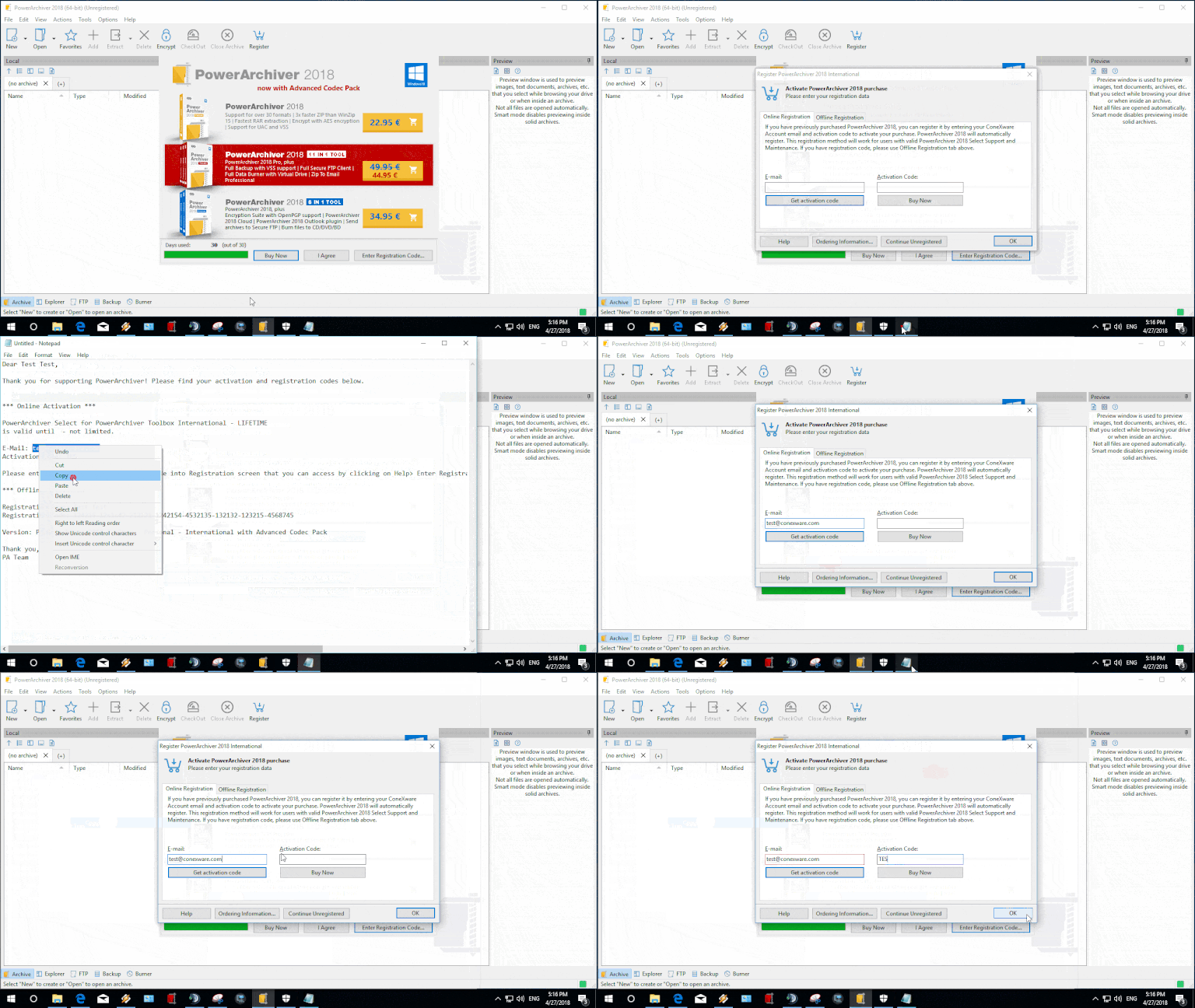
If you have purchased a license for PowerArchiver, you must enter the code you received to register the software and remove the registration notice. You can do so in several ways:
Start Registration
-
If PowerArchiver displays a registration notice when opened, click the “Enter Registration Code…” button from that screen.
-
Select “Enter Registration Code…” from the “Help” menu.
-
Click the “Register” button on the toolbar.

Enter Registration info
-
When the “Register PowerArchiver” dialog appears, you have 2 options - you can use Online registration or Offline registration by clicking on their perspective tabs in upper left part of the window.
-
Online Registration - (RECOMMENDED!) - Online registration uses your PowerArchiver Select activation code (3 characters) and email to pull your PowerArchiver codes from our servers. It works with every version of PowerArchiver as long as you are online and your PowerArchiver Select maintenance plan is active. This is by far the easiest way to register PowerArchiver and keep it registered with every major update as long as Select is active.
-
Offline Registration - Offline registration uses Registration Name and Registration Code (long) to register your specific version of PowerArchiver. Please copy and paste both from your registration email and make sure your installed version matches version information from your email (e.g. PowerArchiver 2017 codes will register PowerArchiver 2017).
-
Once entered, click “OK ” to register PowerArchiver. Please note that PowerArchiver will always accept codes and that code checks happens once you actually start PowerArchiver again - if codes are not accepted, nag screen will appear again. If codes are accepted, nag screen will be removed and PowerArchiver will remove all unregistered notices.
The Adobe Flash Plugin is needed to display this content.
Link to video: https://www.youtube.com/watch?v=97rnqNIiXU0
Troubleshooting
-
Make sure you are using same codes as the version that is installed. If you have PowerArchiver 2017 installed, make sure that your email with codes specified that these are PowerArchiver 2017 codes.
-
Run As Admin - try running PowerArchiver as administrator by right clicking on PowerArchiver icon and selecting Run As Admin. This is applicable to Windows Vista, Windows 7, Windows 8 and Windows 10. Then enter your registration codes.
Upgrading from older PowerArchiver versions
If you have free upgrade to PowerArchiver 2017, you will still need PowerArchiver 2017 codes to register PowerArchiver 2017. If you have codes for version earlier than 2017, then please look below on how to login to your account to get latest codes.
Your Account - Recover your codes, get both free and paying upgrades
If you already own PowerArchiver, you can check status of your account and get registration codes by clicking here: http://www.conexware.com/shop/
Upgrade Policy
PowerArchiver 2017 is an free upgrade to ALL Personal license customers. PowerArchiver business license customers have free upgrade as long as their PowerArchiver Select maintenance plan is current. If your select plan has expired, there is usually a special offer for renewal waiting in your account. You need to go and visit your account via link above to receive latest PowerArchiver registration codes.
Purchase PowerArchiver
If you do not have purchased PowerArchiver yet, or want to purchase another license, please visit our web shop for immediate delivery: http://www.powerarchiver.com/order/
How to find the version of your installed PowerArchiver
You can check which version of PowerArchiver you have installed by visiting the Help and then About section in PowerArchiver.
The Help and About sections are located at convenient locations, depending on the interface that you prefer to use, and will display the exact version number of your installed PowerArchiver.
Please see the below GIF animations which will display where the version information can be found in each interface:
Ribbon Interface

Modern Interface

Classic Interface

Compiled from the official PowerArchiver Wiki (https://wiki.powerarchiver.com/)